    New feature - Presenter Mode

    Build once. Scroll or present.

    CourseAgent Presenter Mode presents published e-learning courses as interactive widescreen slides for facilitators and learners, without exporting to PowerPoint or rebuilding a separate deck. Trainers get live-delivery tools; learners keep the course's configured assessment, progress and completion rules.

    Start free - 7-day trial, no card
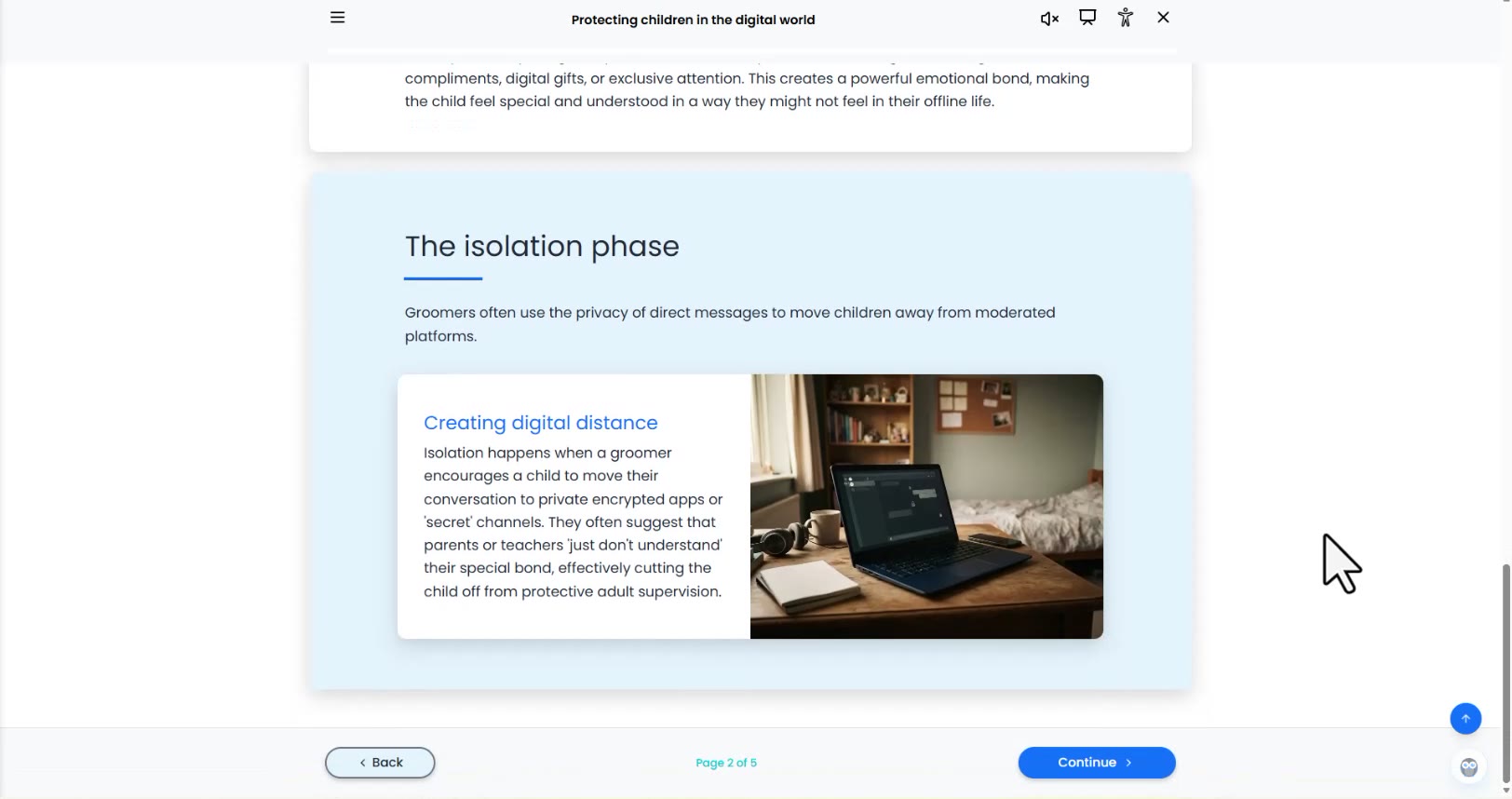
    The isolation phase course section with Creating digital distance in normal scrolling view
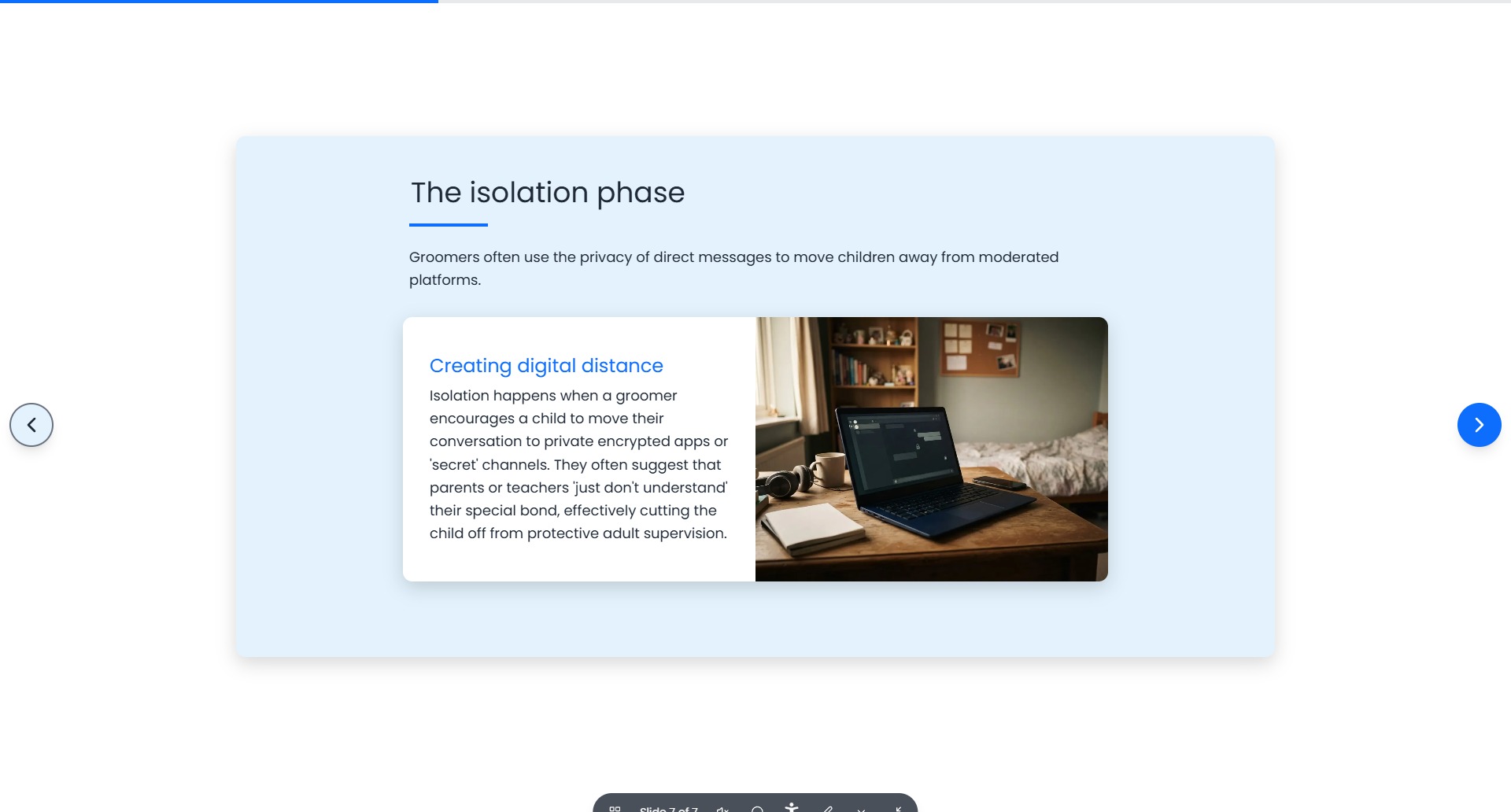
    The same isolation phase section and Creating digital distance callout in widescreen Presenter Mode

    One course for independent learning and live delivery. Desktop and tablet; phones keep scrolling view.

    Stop rebuilding courses as slide decks.

    Use the approved course for self-paced learning and live sessions, without maintaining a second version of the content.

    Rebuilding course content as a slide deck compared with CourseAgent Presenter Mode
    CompareA rebuilt slide deckCourseAgent Presenter Mode
    ContentA separate copy to build and maintainThe published course itself
    Activities and quizzesStatic screenshots or bullet pointsFully interactive in the session
    BrandingRecreated by hand in the deckCourse colours, logos and backgrounds carry through
    Multilingual deliveryMaintain a separate translated deckSwitch between prepared, published language courses
    Colour choicesRestyle the presentation fileOptional author-approved palettes; saved design unchanged
    NarrationManage audio throughout the deckStarts muted, with one Presenter narration control
    When content changesUpdate both the course and the deckRepublish once for the next session
    Tailoring a sessionAnother version of the presentation fileHide items for the session only
    Learner recordsDisconnected from the courseLearners keep their progress, results and certificates

    Trainer delivery does not create a learner result. Learner Presenter view keeps the course's configured rules.

    Build it once. Teach it anywhere.

    The right tools for whoever is presenting.

    Tutor here means the human trainer or facilitator, not the CourseAgent AI Course Tutor.

    Live delivery tools for trainers. No learner score or certificate is created for the presenter.

    Tutor & facilitator

    • Tools available

      Navigate freely, hide slides for the session and draw as you explain using a private Presenter Link.

    • What is protected

      The last published course stays unchanged. Quiz answers support group discussion.

    • Session outcome

      A branded End slide, not a learner score or certificate.

    Learner

    • Tools available

      Choose Present instead of scrolling when enabled by the author. Trainer drawing tools are not available.

    • What is protected

      The same activities, quiz feedback, retries, progress and completion rules apply.

    • Session outcome

      Results and certificates follow the course settings, just as they do in scrolling view.

    Ready for the room. Ready for your audience.

    Prepared languages, approved colours and deliberate audio - while keeping the published course at the centre of every session.

    A prepared language for every room

    Switch between published translations in the same course family, with localised Presenter controls and right-to-left layouts. No new slide deck for each language.

    This opens an existing published course, not instant translation. Learners start the destination at the beginning; progress, results and certificates stay with each language course. Trainers need that language's own private Presenter Link.

    Colour choices, curated by you

    Offer Course default and selected existing colour schemes. Learners can choose an approved palette without changing the author's saved design.

    Optional and off by default. Only palette-linked colours change, not images, video or fixed colours. Republish to change the choices learners are offered.

    Room-safe narration

    Presenter starts muted. One speaker control in the toolbar manages narration and narrated interactions, with on-slide narration buttons hidden.

    Embedded media keeps its own playback controls. YouTube and Vimeo sound remains subject to their controls and browser permissions; this is not a guarantee that every media source is silent.

    Your course, right down to the backdrop

    Primary and secondary navigation reflect the course's button styling. Lesson-page image or colour backgrounds replace the course wallpaper, and the course logo can appear in the slide menu and trainer End slide.

    Without a lesson-page override, the course background applies. Special pages use the course background; palette choices only affect palette-linked design elements.

    Everything you need to deliver with confidence.

    Real course views, live activities and practical tools for the room - not a static export.

    A slide menu built for the room

    Jump between topics and slides. Trainers can hide items for this session without changing the saved course.

    Draw as you explain

    Use pen, highlighter, laser and eraser during live delivery. Drawings stay with each slide and clear when Presenter closes.

    Live quizzes, not screenshots

    Use real activities and quiz feedback to lead discussion. Learners retain their configured assessment rules.

    Media stays part of the course

    Keep video and narration with the course. Presenter narration starts muted under one toolbar control; embedded media retains its own playback controls.

    Course accessibility comes along

    The course Accessibility panel remains available, with localised controls and right-to-left support.

    Finish on brand

    Trainer sessions finish on a branded End slide, not a learner score or certificate.

    How it works

    1. 1

      Build or import

      Create your course as usual in CourseAgent.

    2. 2

      Preview & pace

      Open Presenter from Preview in the editor to check slide pacing, fit and branding.

    3. 3

      Share private link

      Publish, then send a private Presenter Link to your facilitator.

    4. 4

      Deliver & annotate

      Run interactive activities, reveal quiz answers for discussion, draw live and finish on brand.

    Where teams use it

    Compliance briefings

    Present approved content and ask live questions, without creating a trainer learner result.

    Onboarding workshops

    The same course supports independent study and a facilitator-led welcome session.

    Toolbox talks and customer training

    Focus on one section at a time, annotate during discussion and finish on brand.

    Good to know

    Presenter Mode today

    • Works on desktop and tablet; phones stay in normal scrolling view
    • Timelines stay whole on one slide; Topics pages adapt as an agenda
    • Learners can choose side arrows, a labelled bar or minimal controls
    • Eligible Dynamic SCORM learners use the hosted slide view with LMS tracking; test in your target LMS
    • Presenter Links use the last published course; republish to include edits
    • Trainer tools do not alter the saved course or grant learner completion
    • Language switching opens published translations; learner progress does not transfer between language courses
    • Learner colour choices are author-curated, optional and off by default
    • Presenter narration starts muted; embedded media retains its own controls
    • A live delivery experience - not a PowerPoint export

    Teaching the same course twice?

    Illustration of Mark

    Illustrated scenario

    Mark's team used to tune out during slide shares. Now they follow the real course on their own screens.

    See Mark's story

    Not a customer testimonial.

    Frequently asked questions

    Yes, where published translations are available in the same course family. The language control opens an existing published sibling course; it does not translate on demand. Learners start that course at the beginning, and slide position, quiz state, progress, results and certificates do not transfer. Each language keeps its own Insights. Verified trainers need the destination language's own private Presenter Link; session hiding, drawings and position do not carry over. Arabic, Hebrew, Persian (Farsi), Urdu, Pashto, Kurdish (Sorani) and Sindhi use right-to-left layouts.

    Yes, if the author enables the optional choice, which is off by default. Authors offer Course default and selected existing schemes. Learner choices change palette-linked colours and Presenter controls, not images, video or fixed colours, and do not overwrite the author's saved design. Published preferences are remembered per course on the same browser origin and device, not synced across devices or tabs. Preview choices are temporary. Republish to update the offered schemes. Contrast hints are advisory, not accessibility certification.

    No. Presenter starts muted, hides on-slide narration buttons and uses one toolbar speaker control for narration and narrated interactions. Deliberately played embedded media keeps its own controls; external YouTube and Vimeo sound depends on their controls and browser permissions. Leaving Presenter restores the previous scrolling narration preference and the original HTML media mute state.

    Yes. Presenter navigation uses the course's primary and secondary button styling. The course logo can appear in the slide menu and trainer End slide. A lesson-page image or colour override replaces the course wallpaper; otherwise the course background applies. Special pages use the course background. Optional learner palettes affect palette-linked colours, not every fixed design element.

    No. Presenter Mode is a live delivery experience that presents the course itself in a widescreen, slide-by-slide view. It does not need PowerPoint and does not create a PPTX file.

    Yes. Presenter Mode displays the live course, so supported activities, quizzes and media stay interactive rather than becoming static images.

    Yes. When the author enables learner Presenter view, learners can switch from scrolling to slides while retaining the course's configured quiz feedback, retries, progress, assessment, review and completion rules. Results and certificates still follow the course settings. Learners do not get trainer drawing tools.

    Eligible Dynamic SCORM learners can use slide view through the hosted CourseAgent player, with the LMS tracking and completion connection retained. They remain learners, not verified trainers, and do not get drawing tools. Test the experience in your target LMS before rollout. This is not a claim of static SCORM Presenter support.

    Yes. With a private Presenter Link, trainers can navigate freely and hide items for that session only. The saved course is not changed.

    No learner score or certificate is produced for the trainer. A trainer can reveal a quiz answer for discussion and continue, and the session ends on a branded End slide.

    Presenter Mode is designed for desktop and tablet screens. On phones, the course stays in its normal scrolling view.

    No. Drawings stay with each slide during the session and disappear when Presenter closes. Content editing remains in the course editor.

    No. In these recordings, tutor means the human trainer or facilitator using a private Presenter Link. Presenter Links do not expose the AI Course Tutor. Eligible learners may use the AI Course Tutor where it is enabled and permitted by their delivery route and page settings.

    Turn your course into the session.

    One course for self-paced learners and live sessions. Keep your content, activities and branding together - without building a second deck.

    See what's included in the 7-day trial

    Your cookie choices

    We use essential storage to remember your choices. With your permission, Google Analytics helps us understand visits and improve CourseAgent. Cookie policy